Add R2A to your chart in under a minute
Access is added to your TradingView account automatically after payment. Then follow these steps — on the web, the desktop app or your phone.
- 1
Check your TradingView notifications
When access is granted, TradingView adds R2A Premium Indicator to your account and usually shows a notification (the bell icon). You do not need to accept anything — the access is already active on the username you gave us.
- Log in to TradingView with the exact username you entered at checkout.
- Access usually appears within a few minutes of payment. Your order page shows the live status.
- 2
Open any chart
Go to tradingview.com (or the desktop / mobile app) and open a chart — any symbol and any timeframe. R2A works on gold, forex, crypto, indices and stocks.
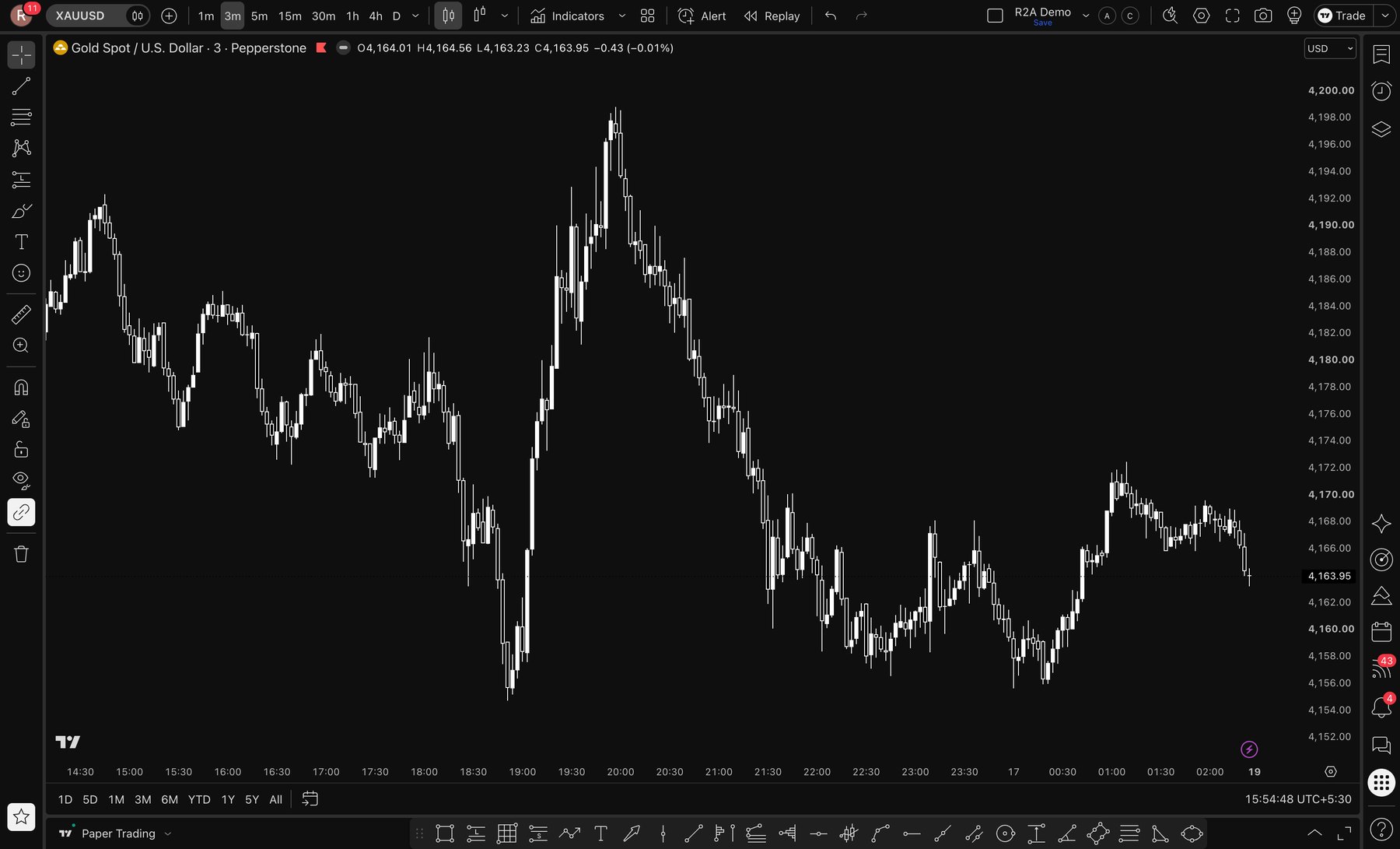
TradingView · Gold · XAUUSD · 3m · Captured from TradingView, 18 Oct 2026 - 3
Open Indicators and choose “Invite-only”
Click Indicators in the top toolbar (or press /). In the left column, under Personal, choose “Invite-only”. R2A Premium Indicator by R2A2026 is listed there.
- On the mobile app: tap the ƒx icon, then “Invite-only”.
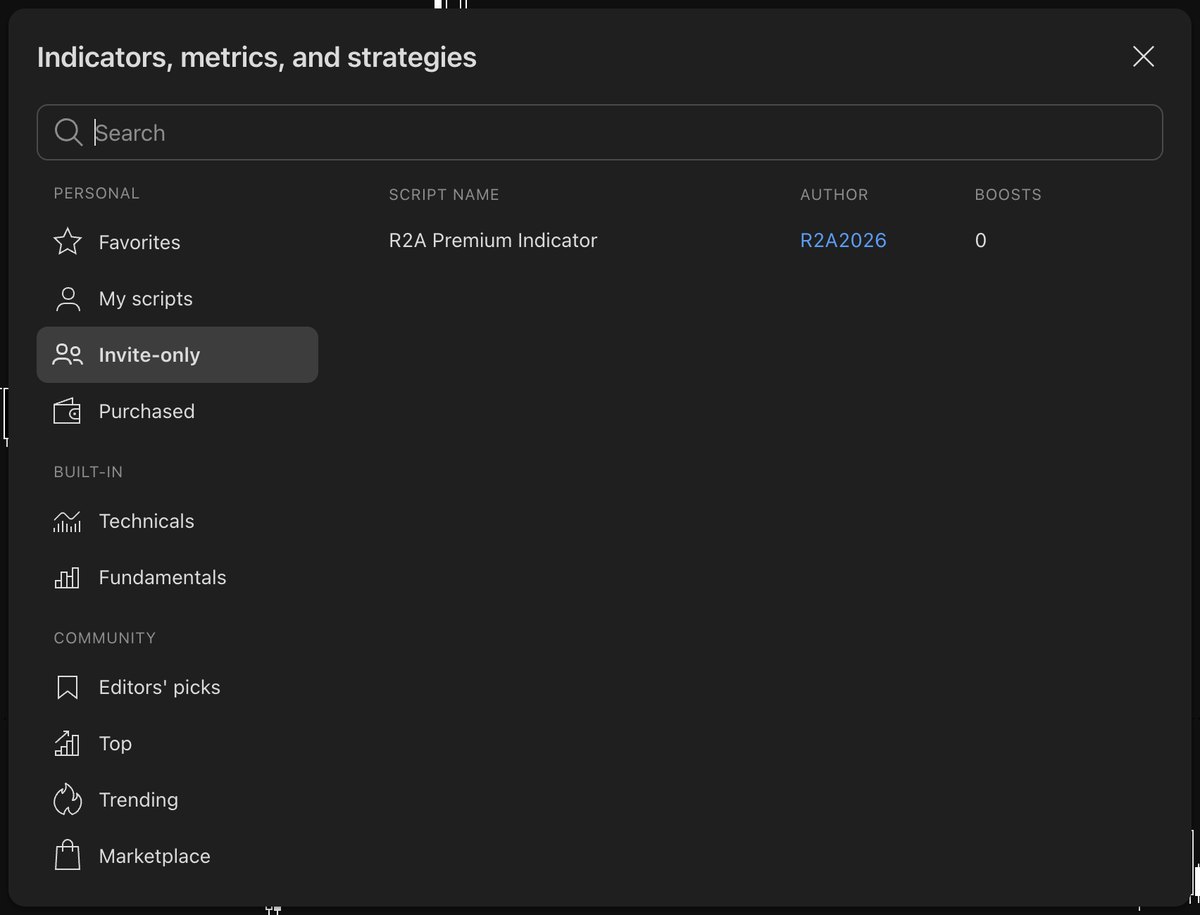
TradingView · Indicators → Invite-only · Captured from TradingView, 18 Oct 2026 - 4
Click R2A Premium Indicator once
One click adds it to the chart — you will see “R2A” in the top-left legend. R2A runs in a single indicator slot, so it works on TradingView’s free plan too. You can add a ★ to keep it in Favorites.
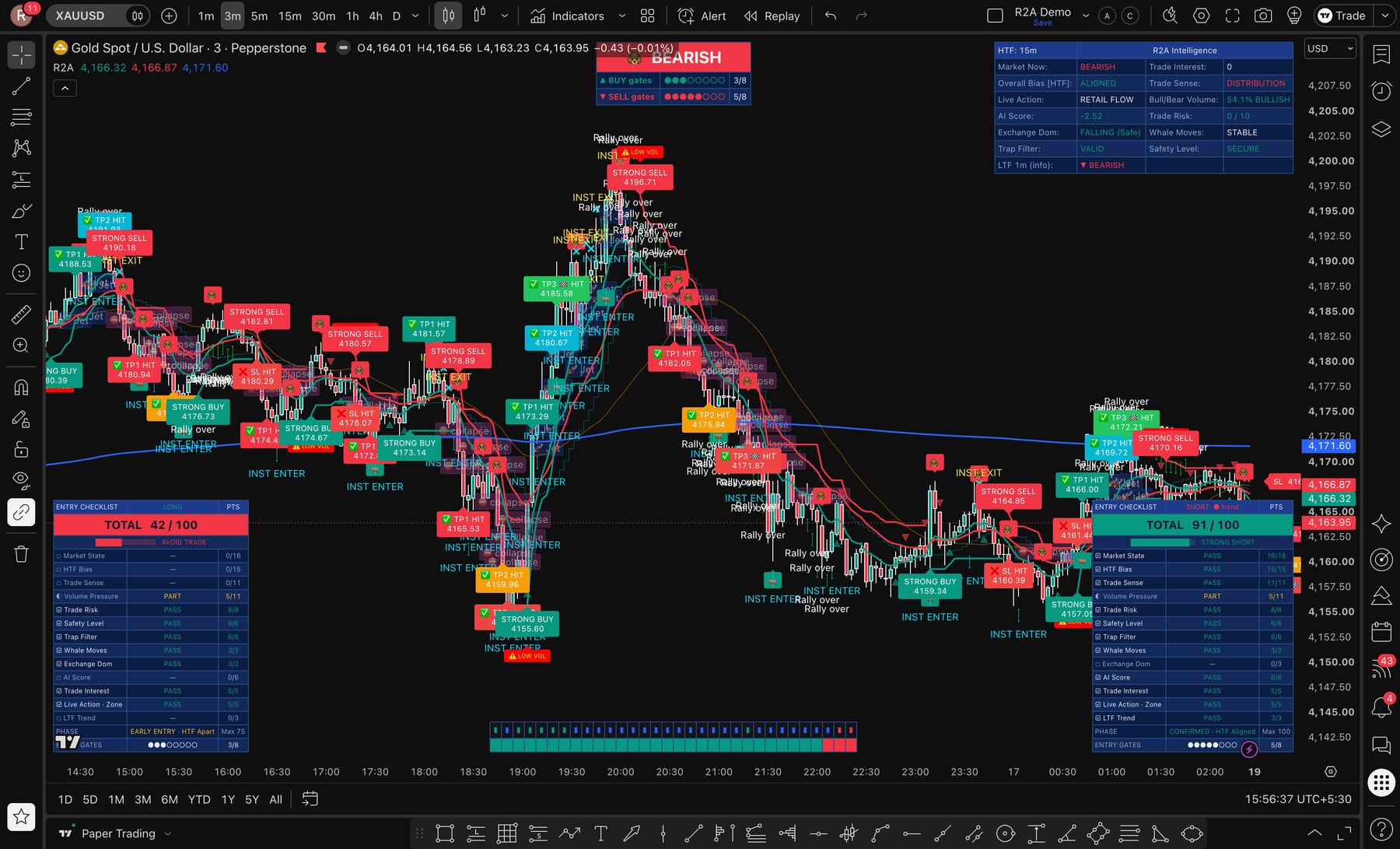
R2A on Gold · XAUUSD · 3m · Captured from TradingView, 18 Oct 2026 - 5
Meet the panels
Intelligence Dashboard (top right): 12 live rows describing the market. Market Now (top centre): bias plus buy and sell gates. Entry Checklist (bottom corners): a 100-point checklist for LONG and SHORT. HTF Confirmation Bar (bottom centre): Heikin-Ashi momentum over the higher-timeframe trend. On the candles: entry, TP1/TP2/TP3 and SL markers, plus EMA 9, EMA 20 and session VWAP.
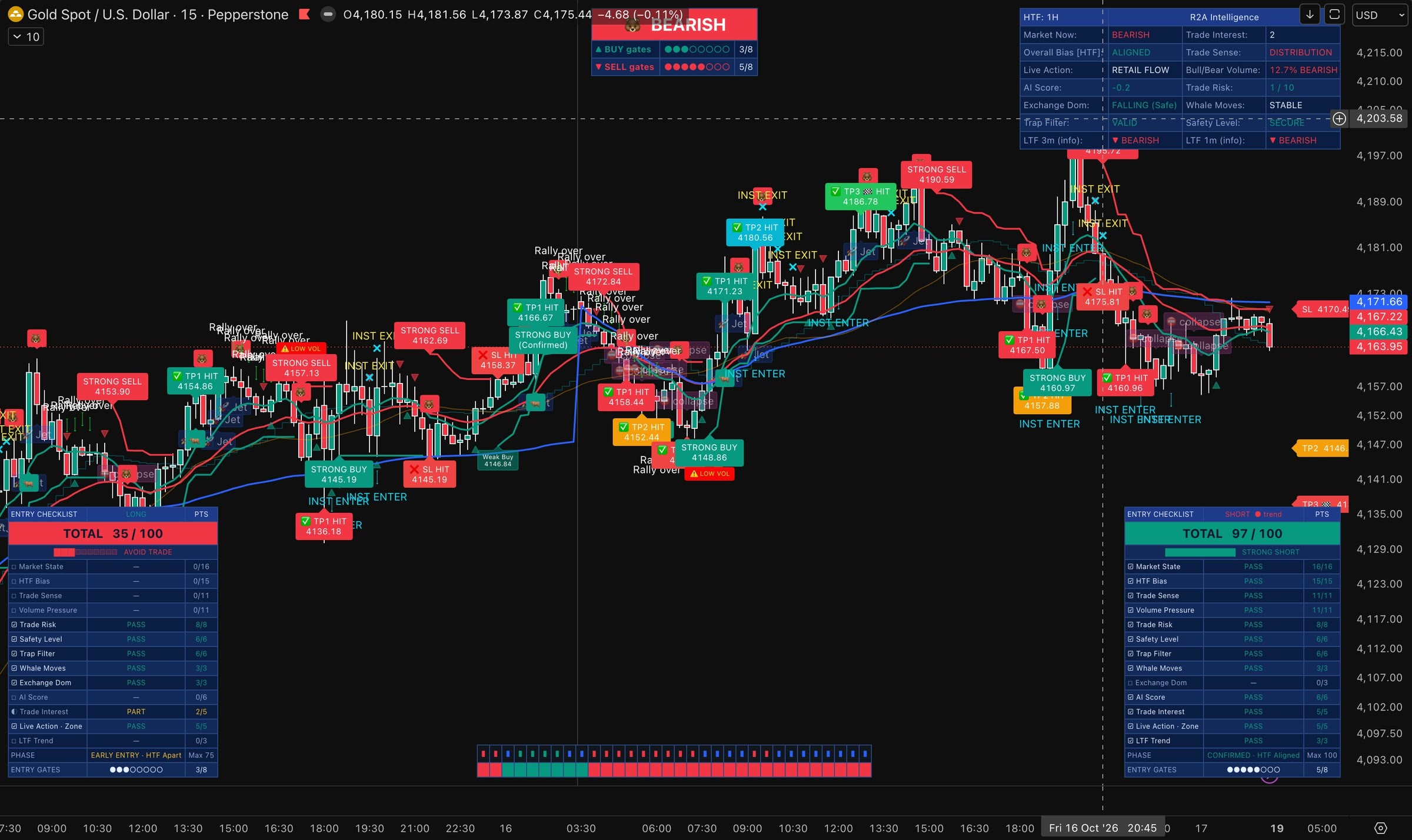
Gold · XAUUSD · 15m · Pepperstone · Chart captured from TradingView, 18 Oct 2026 - 6
Adjust it to your screen
Hover over “R2A” in the legend and click the gear icon (or double-click the name) to open Settings. On the Inputs tab, under “Boxes / Panels”, you can show or hide each panel, move it to any corner and change its size. Colours live under “Candle Colours” and the Style tab.
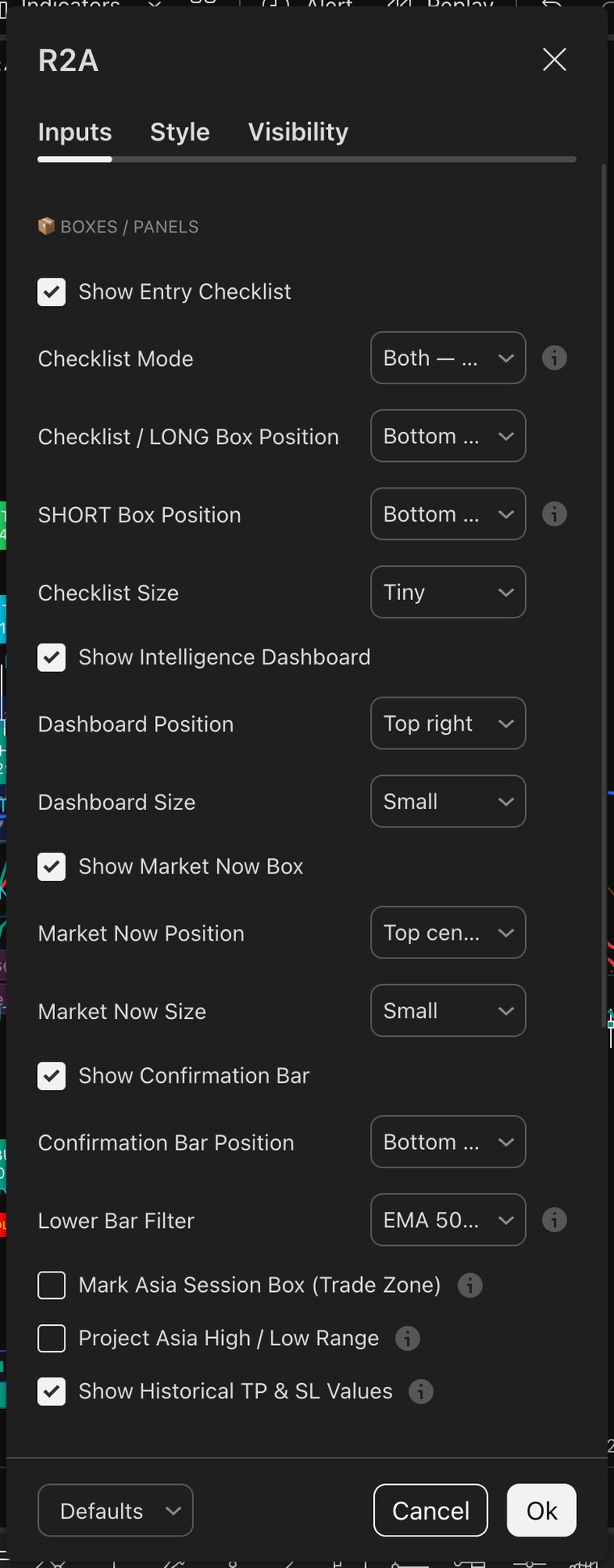
R2A settings · Inputs · Captured from TradingView, 18 Oct 2026 - 7
Switch on the Asia session box
Our recommended way to use R2A is inside the Asia session: the 3-minute chart for scalps and the 15-minute chart for entries. In Settings → Inputs, tick “Mark Asia Session Box (Trade Zone)” and “Project Asia High / Low Range”, then click Ok. R2A draws a box around each Asia session with its high, low and range, and projects the Asia high and low forward into London and New York.
- The Asia session is 00:00–07:00 UTC. In Toronto that is 20:00–03:00 in summer (EDT) and 19:00–02:00 in winter (EST, early November to mid-March); in Vancouver 17:00–00:00 in summer and 16:00–23:00 in winter.
- The box always uses UTC, so it lands on the same hours whatever your chart’s time zone or daylight-saving change.
- Both options are off by default so the chart stays clean until you want them.
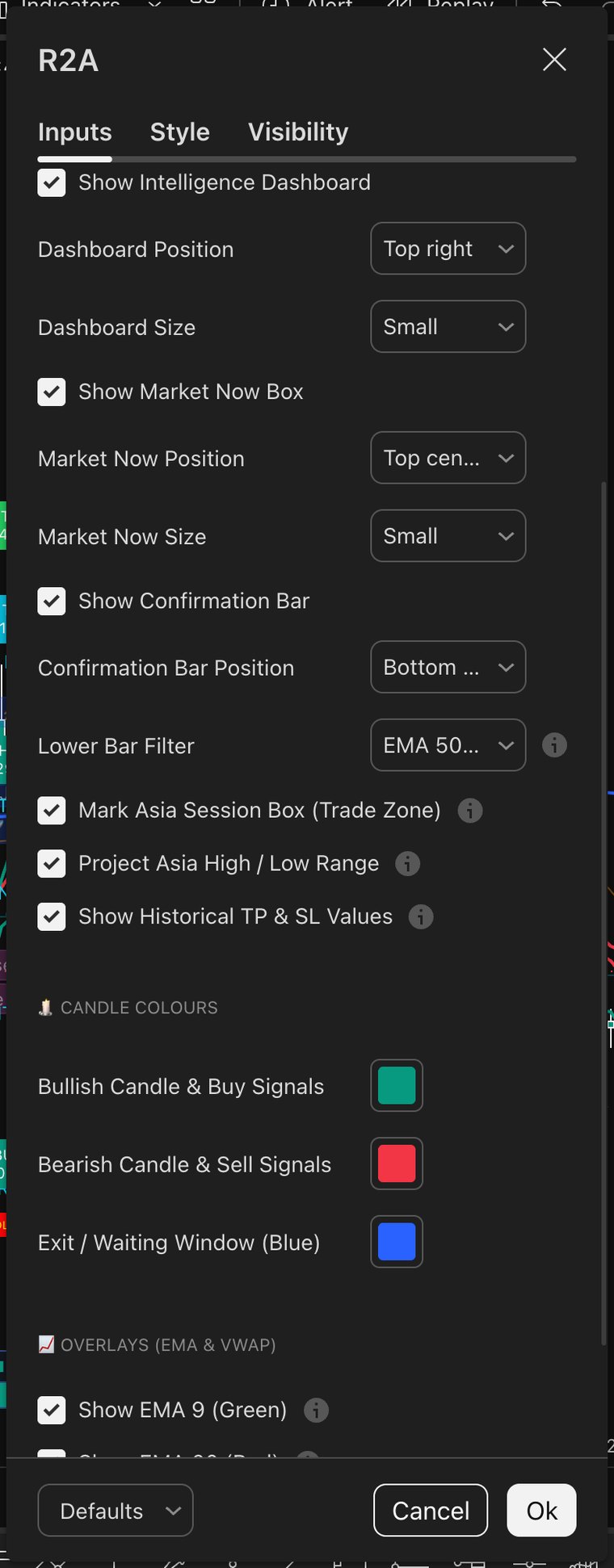
R2A settings · Asia session switched on · Captured from TradingView, 18 Oct 2026 - 8
3-minute chart: scalps inside the box
Switch the chart to 3m. The Asia Trade Session box marks the window; signals, TP1/TP2/TP3 and stop labels inside it are the ones this setup is built around. Outside the box, treat the panels as context only.
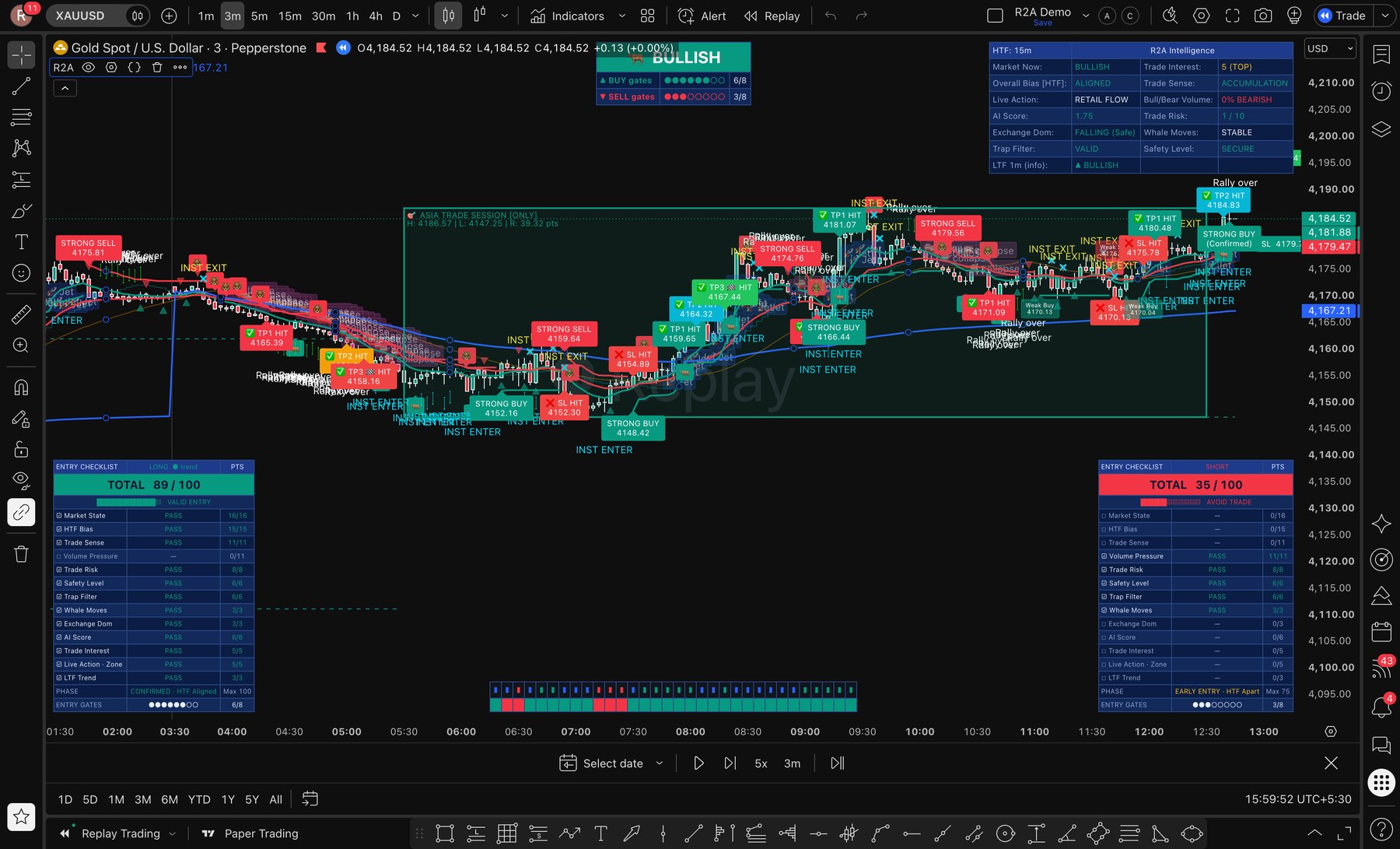
Bar Replay · Gold · XAUUSD · 3m · Asia session 16 Oct 2026 · Captured from TradingView, 18 Oct 2026 - 9
15-minute chart: entries inside the session
Switch to 15m to see the same Asia session with more history. Each day gets its own box, and the dashed lines carry the Asia high and low forward — useful for spotting when London or New York sweeps the Asia range.
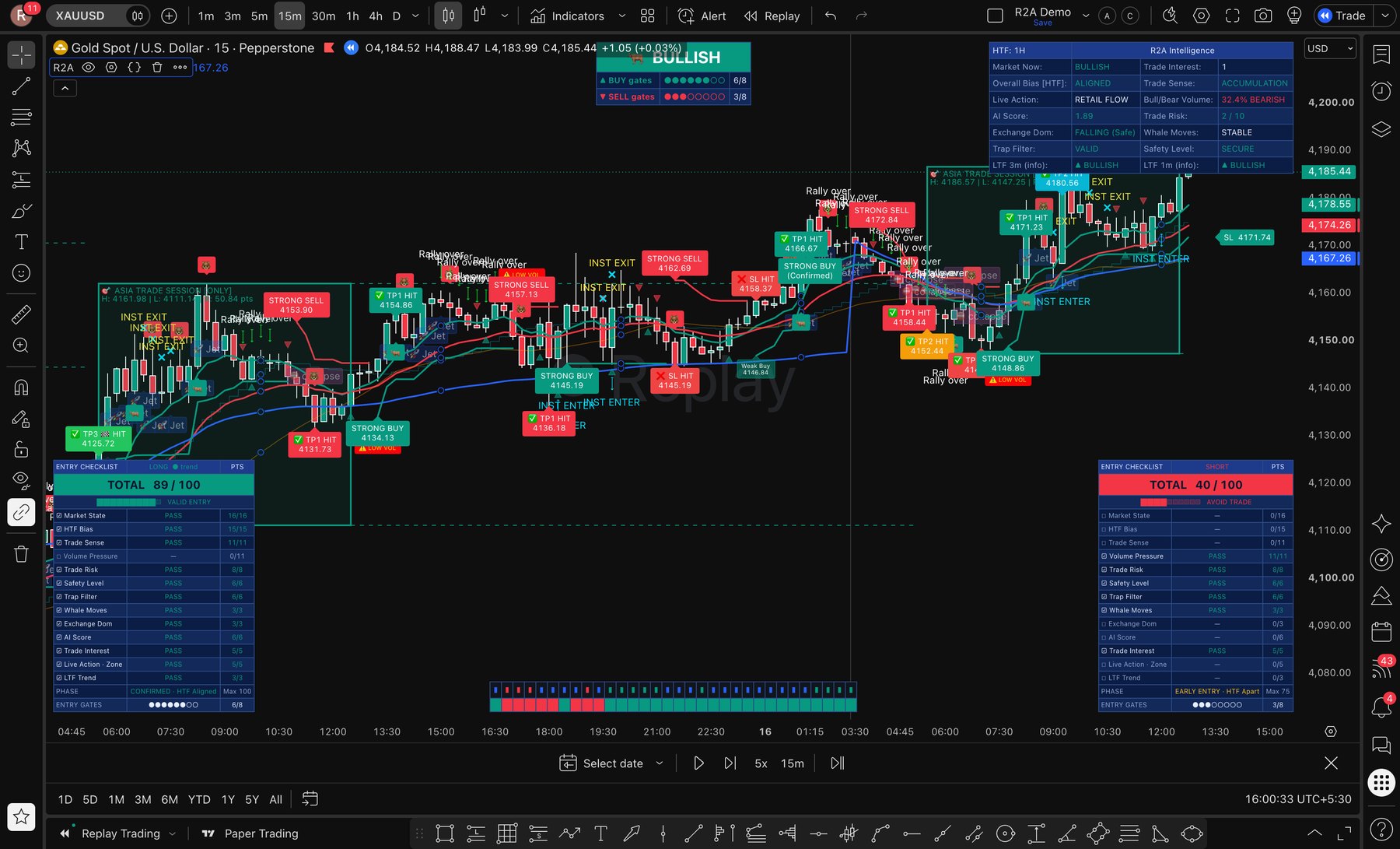
Bar Replay · Gold · XAUUSD · 15m · Asia sessions 15–16 Oct 2026 · Captured from TradingView, 18 Oct 2026 - 10
Practise with Bar Replay before you trade
TradingView’s Bar Replay lets you replay any past session bar by bar with R2A on the chart. Click Replay in the top toolbar, choose “Select date”, pick a day just before 00:00 UTC, then press play (or step one bar at a time). Watch how the box, signals and checklists build — then practise your own decisions. Replay never touches your account.
- Alerts are not available while Replay is running — exit Replay (the × on the replay toolbar) to create alerts.
- Replay depth depends on your TradingView plan.
TradingView Bar Replay · Gold · XAUUSD · 3m · Asia session, 16 Oct 2026 · captured 18 Oct 2026 - 11
Set alerts
Click Alert in the top toolbar (or press Alt + A). For Condition choose “R2A” — the indicator’s short name. Set Interval to “Same as chart”, choose how you want to be notified, then click Create.
- Alerts count against your TradingView plan’s alert limit.
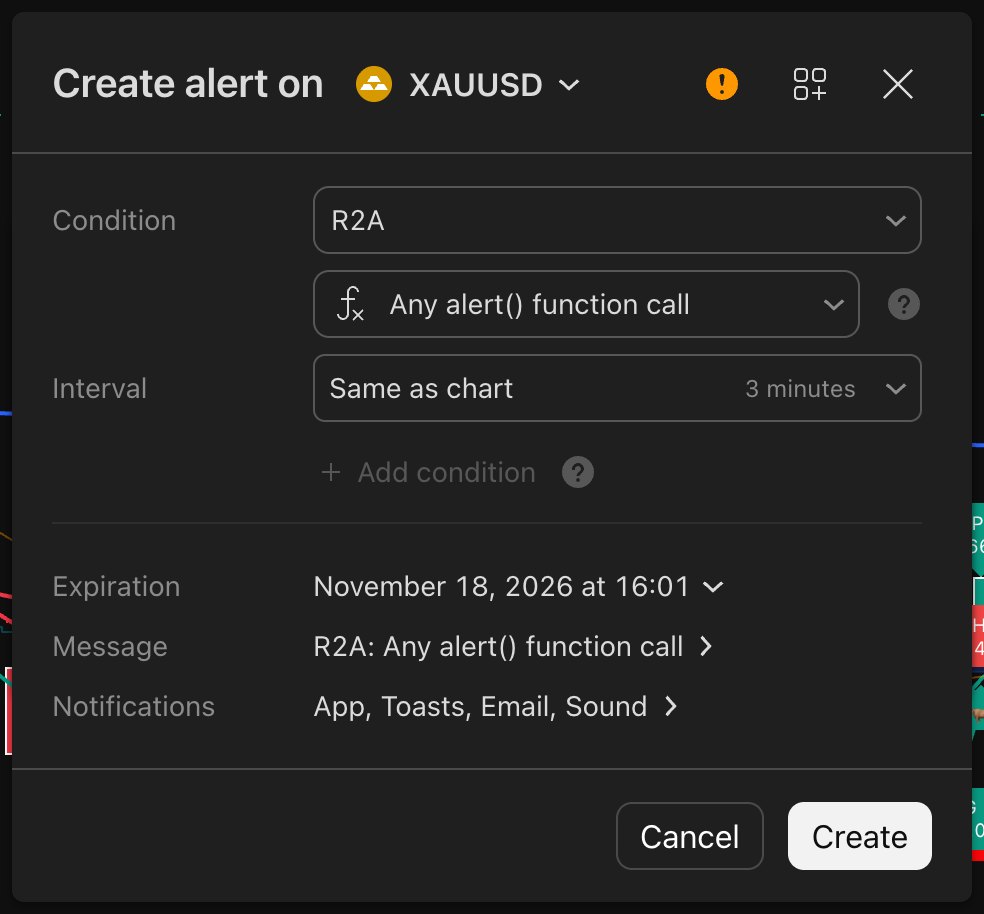
TradingView · Create alert · Captured from TradingView, 18 Oct 2026 - 12
Pick the event you care about
Open the second Condition dropdown to choose the exact R2A event — for example Strong Buy (Confirmed), TP1 Reached, Stop Loss Hit or R2A Bar Long Confirmed. Create one alert per event you want to hear about; “Any alert() function call” sends every R2A alert.
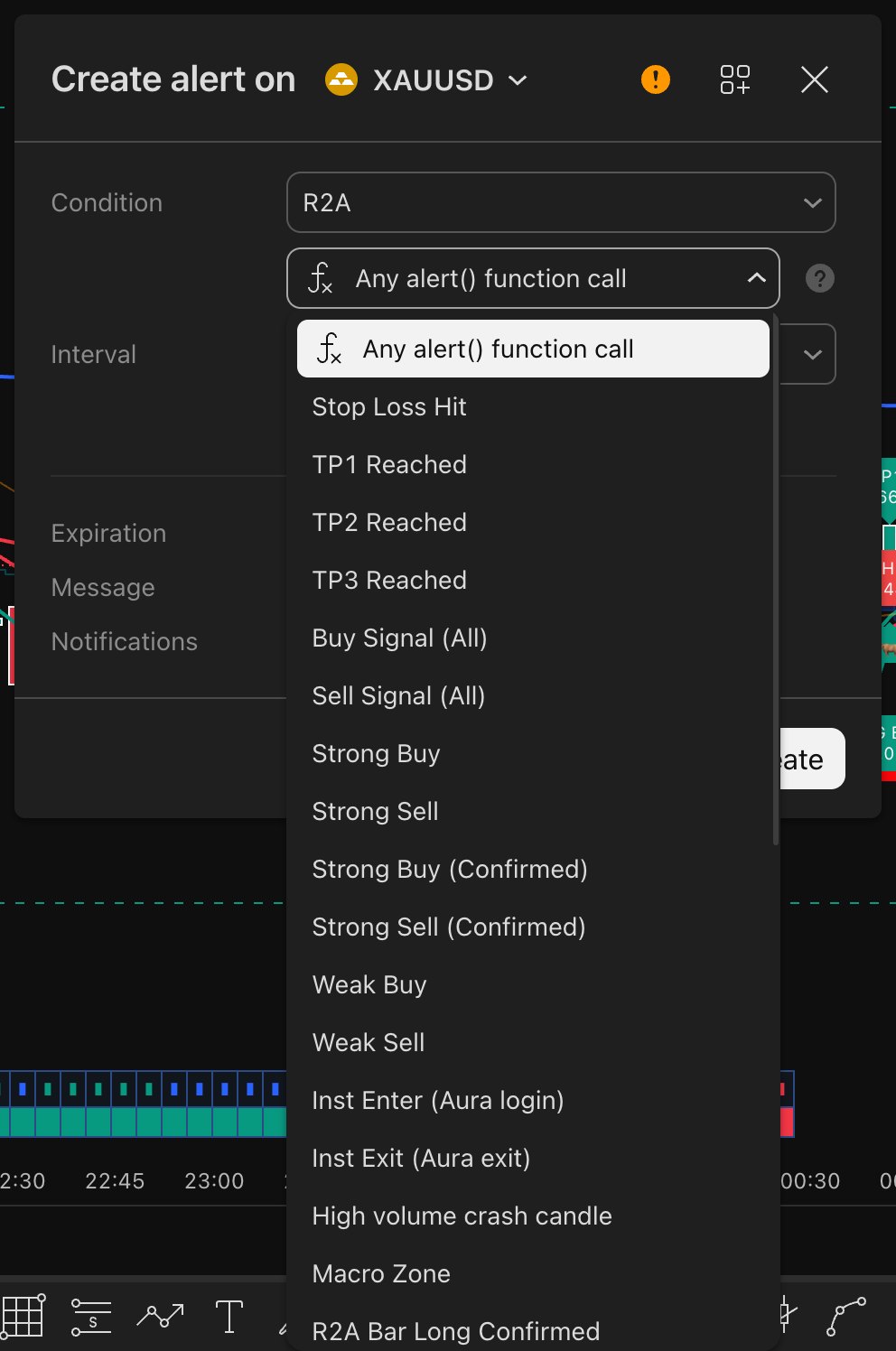
TradingView · R2A alert events · Captured from TradingView, 18 Oct 2026


Troubleshooting
I don’t see R2A under Invite-only
Make sure you are logged in with the exact username on your order (TradingView usernames are not your email). Refresh the page or restart the app. Then check your order page — if it says “granted”, use “Re-request access”; if it says “pending”, access is still being added.
I entered the wrong TradingView username
Contact support with your order number and the correct username. We move the access to the right account.
The panels overlap my other indicators
Open Settings → Boxes / Panels and move each panel to a different corner, or set its size to Small or Tiny.
It works on desktop but not on my phone
Access is tied to your TradingView account, not the device. Log in to the same account in the app; it appears under Indicators → Invite-only.
Still stuck? Open a support request — include your order number.
Risk warning. Trading forex, gold, crypto, indices and other leveraged products carries a high risk of loss and is not suitable for everyone. R2A Premium Indicator is an educational charting tool. It is not financial advice, does not execute trades and does not guarantee any outcome. Past behaviour of any market, indicator or strategy does not predict future results. Read the full risk disclaimer.